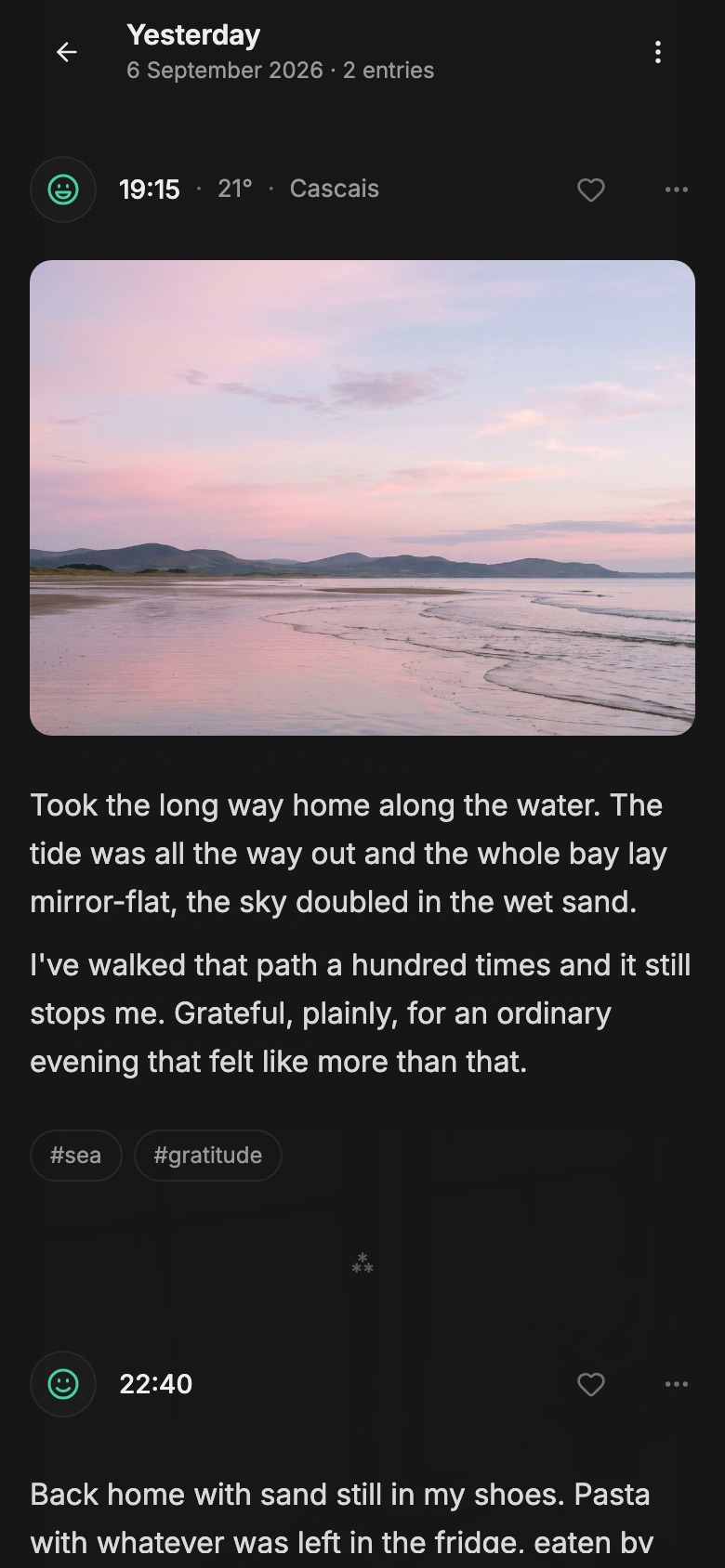
Write a few lines, add a photo or a voice note. Reflect Day keeps every day and brings it back to you: on this date next year, in your calendar, or when you read your journal like a book.
Keep the details of a day, follow something over time, or come back to what you thought before. Start with whatever you want to remember.
Rediscover your days
See this day across the years.
Photos and entries from this date in previous years return to your home screen. Open a memory, read what you wrote, and notice what has changed since then.
With AI connected, compare those years or open a review of the past week. You can keep a day or a whole period out of Rediscover without deleting its entries.
Find entries about a trip, revisit a decision, or ask for a summary of a week. The assistant can point back to entries and suggest tag changes for you to review before applying.
AI stays off until you add your own Gemini key. The text a request needs goes straight to Google, and everything else in Reflect works without it.
Record a thought, add a day you missed, organise years of entries, or make a theme of your own.
Voice notes with transcription
Record a thought when you can’t type. Connect AI to turn the recording into text. On iPhone, start from Siri, the Action Button, or the Lock Screen.
Photos, video, audio & PDFs
Keep the photo, the recording, and what you wrote about them in one entry. Add a place and a mood to connect that memory to your map and charts.
Write about a past day
Missed a day, or found an old photo? Open that date in the calendar, or share the photo to Reflect on iPhone. The entry is filed under the day it’s about.
Ask the assistant to tag a whole trip or tidy up tags you’ve used differently over the years. Review the proposed changes before applying them.
Storage & privacy
Your entries. Your Google Drive.
Reflect keeps a copy on each of your devices and syncs them through your own Google Drive. There is no Reflect server in between, and we don’t store your journal.
Your phoneLocal copy
Your Google DriveKeeps devices in sync
Your computerLocal copy
On your devices, only the text of your entries is encrypted. Dates, tags, places, and attachments are not.
Entry text is encrypted on the device by default. Set your own password and the recovery key leaves your Drive, so only you can unlock it.
In your Google Drive
The copy that keeps your devices in sync sits in a private app folder. It is not end-to-end encrypted, so it is as safe as your Google account: give it a strong password and 2-Step Verification.
Cover your journal when you step away
The privacy curtain hides entries when you switch apps or leave the journal idle. You can require an unlock before it opens again.
Take your journal with you
Export every entry and attachment as files whenever you like. The format is documented, so your journal isn’t locked into Reflect.
The app runs on your devices. Your journal uses your Google Drive storage, and optional AI uses your own Gemini key. That keeps Reflect’s running costs low.
What might cost money?
Your journal uses space in your Google Drive. Extra storage, if you need it, is paid to Google. Optional AI may incur Gemini usage charges on your account.
A Google account and your phone or computer. Install Reflect, sign in with Google, and start writing. There is no separate Reflect account to create.
Can I use it without a connection?
After the first online setup, you can read downloaded entries and write offline. New entries stay on your device until they sync. Connect regularly and keep an export, too. About sync and backups.
Can I bring my existing journal?
Yes. Import in Settings reads a Reflect Day export and exports from some other journal apps; the import screen lists which. It runs in Chrome or Edge on a computer, and the imported entries then sync to your other devices.
What if I lose my phone?
Your journal is still in your Google Drive, so it downloads again when you sign in on another device. In Settings › Devices you can erase the lost phone’s copy; it is removed the next time the app opens there. Sign that phone out of your Google account, too.
Where is my journal in Google Drive?
In a private app folder. It doesn’t show up in your Drive’s file list, and only Reflect can open it. For files you can open anywhere, export your journal from Settings.
Can Reflect or Google read my entries?
Your entries are not stored on Reflect servers. The copy in Google Drive is not end-to-end encrypted, so anyone who gets into your Google account could read it. If you turn on AI, the text a feature needs is sent directly to Google with your Gemini key — and with a free key, Google trains its models on that text and its reviewers may read it.
Download Reflect Day.
One Google account. The same journal on all your devices.
iPhone & iPad
Write, add photos, and record voice notes from your phone.